Brad Wardell's Blog


WinCustomize, deviantART to merge

Published on Sunday, April 1, 2007 By Brad Wardell In WinCustomize News

Stardock is pleased to announce that WinCustomize and deviantART are in the process of merging.

Both domain names will continue to function, but the combined site will take on the best of both sites.  deviantPrints will be able to be sold and acquired through Stardock Central and Master skins and other artwork will be able to be easily placed online for sale.

The overall site design will come to resemble the deviantART green look and the community forums of both will be merged into a single forum.

The merged site name will be determined based on a user-contest with the final name chosen by a user vote. 

..

..

April fools.

GalCiv 1.6 Betas about to begin...

Published on Friday, March 30, 2007 By Brad Wardell In GalCiv Journals

This next week we hope to release the first of the 1.6 Galactic Civilizations II: Dark Avatar betas.  This will be the first major update since release as we look through feedback to see what new features we can look at adding, what play balancing we can do, and what sorts of game play issues we need to address.

One of the requirements we've made is to make the game run a lot faster on lower end hardware.  We have this working internally and the results should be pretty significant even in the first beta. The big thing we did was add ship stacking -- only the top most ship on a tile actually will get drawn and ones underneath will be representated by a symbol. 

For some people, the improved graphics if Dark Avatar come with a price -- slower performance. It shouldn't affect most people (I did all my AI work on an ATI 9800 Pro without problems).  But for people with lower range video cards playing on very large galaxies, all the extra polygons do eventually add up.

We're also looking through suggestions on the computer players. As many of you know, for me, computer AI is the core element of the game.  So finding new ways to improve it and make it more challenging is what makes the whole thing worth doing for me. 

You could even go as far as to say that if it weren't for the constructive AI suggestions we've seen, there'd be fewer updates since there'd be less motivation to do the updates.   I love a good idea from people playing the game.

Internally we've started migrating some of the engine tools from our unannounced fantasy TBS into GalCiv II:DA 1.6 which allow us to optimize performance a little better.  Going forward, some of the dual core and quad core drawing routines may make their way into the GalCiv II engine too (though it really depends on sales since such work would require increasing the after-release budget).

This weekend I hope to work more on the AI.  I'd like to add more text to the alien dialog in this update but there's an expense attached to that since it requires translation into a bajillion languages.

I also would like to add some new custom maps and scenarios but would like to hear if anyone plays those like I do.

WindowBlinds Info Guide

Published on Thursday, March 29, 2007 By Brad Wardell In WindowBlinds

Overview

WindowBlinds is a program for Microsoft Windows that enables users to change the look and feel of the Windows GUI.  By look and feel, we mean literally change the way title bars, push buttons, the Start bar, scrollbars, and nearly every other element of the interface of Windows.  These changes are then inherited by the programs running on your system to deliver a consistent look across most of your programs.

WindowBlinds changes the look and feel by applying skins (called visual styles) that can be made by anyone using a free program called SkinStudio.  There are thousands of these visual styles available for download on websites such as WinCustomize.com, deviantART.com, SkinBase.org, Customize.org, and elsewhere.

WindowBlinds will run on Windows Vista and Windows XP.  Stardock also has a "WindowBlinds classic" which runs on Windows 2000 and earlier operating systems as well.

WindowBlinds in action

WindowBlinds applies skins that change the look of Windows to something of your own preference.  Unlike Windows, WindowBlinds can also change the look and feel of programs that aren't "theme aware". You may notice while running certain programs that the controls (push buttons, radio buttons, checkboxes, etc.) look like an older version of Windows. That's because the program isn't theme aware.  WindowBlinds can skin even those programs.

For example:

The left window is Windows XP by default.  The right is Windows XP with WindowBlinds running. Note how the application on the right side of the screen looks differently.

The other advantage is that WindowBlinds uses DirectX acceleration to draw, resize, and move windows faster than the default Windows engine can.

Windows XP skinning

On Windows XP, WindowBlinds not only can change the basic look of Windows, but it adds support for per pixel alpha blending. This means having controls that blend into their background.  Title bars that you can see through like glass, push buttons that blend into what is behind them, and edges that have no jaggies are all possible because of WindowBlinds per pixel alpha blending.

WindowBlinds running a skin to make Windows XP's UI look more like Windows Vista.


Companies such as Alienware, amongst many others, have used WindowBlinds skins to create custom-branded desktops. This Star Wars skin was included with Alienware's Star Wars PCs.  Look at how the title bar and borders are unique and elegant. WindowBlinds skins allow companies deliver their unique branding to their customers while giving users something new and interesting to use on their desktop.

There are many thousands of different skins available on the Internet for WindowBlinds. Most of them are original creations by users.  But many other users also enjoy making Windows look like other operating systems.

Features: Toolbar button and progress animation changing


WindowBlinds allows users to change the toolbar icons for Explorer and Internet Explorer.


Users can have WindowBlinds change the various progress animations in Windows XP


Downloaded a skin but don't like the color? No problem, WindowBlinds supports both color changing and hue shifting.


Options for Power Users

WindowBlinds also supports features for more advanced users.  Even if you don't care about "eye candy", WindowBlinds can be used as a powerful productivity tool.


Users can use WindowBlinds to set the right-click behavior on the title bar to minimize a program as well as use skins that have extra controls like roll-up buttons or always on top buttons.


Users can assign specific applications to have a specific skin (or tell them to be ignored by WindowBlinds entirely). If you have a special app that works better with a particular skin (perhaps a custom skin with title bar buttons that take the user to different pages related to that application) you can set it up with WindowBlinds.


WindowBlinds supports a variety of different languages natively

Fun with Wallpapers

WindowBlinds skins can include replacement wallpapers. But users can also tell WindowBlinds to change their wallpaper automatically at different times of the day. Moreover, users can have their WindowBlinds wallpaper library be pulled from any number of directories -- making WindowBlinds a much more convenient way to manage wallpapers than the default wallpaper manager in Windows.


WindowBlinds on Windows Vista

Like on Windows XP, WindowBlinds support skinning even non-theme aware applications.  It makes full use of the new Windows Vista Desktop Window Manager (DWM) to accelerate painting to ensure maximum performance.


Windows Vista by default (left) and Windows Vista with a WindowBlinds skin (right). Note again that the application on the right is fully skinned only with WindowBlinds.


For fun, users can make Windows Vista look like..Windows XP!


Other skins on Windows Vista in action


More Help & Information

You can download WindowBlinds for free at www.windowblinds.net. The full version of WindowBlinds is $19.95 on its own or you can get Object Desktop for $49.95 which includes not just WindowBlinds but many other programs with it.

Tips for making animated wallpapers

Published on Wednesday, March 28, 2007 By Brad Wardell In DreamScenes

Alex Kipman from Microsoft has posted a series of tips on WindowsUltimate.com on how to make a good animated wallpaper. The highlights include:

From a content perspective:

  • Keep the camera angle static, so no zooming, panning etc or people will either puke or turn you off after a few seconds
  • Try to bring interest in the top quarter and bottom quarter of the video so that you can get motion coming through the glass surfaces in Vista
  • Keep the loop to about ~30 seconds in length
  • Make sure the content is visually appealing, and the composition of the frame is appealing
  • Beware of the areas of motion.  Make sure that where there is motion, that the motion is not distracting.  Make sure the type of motion doesn't make folks dizzy or lean to one side etc
  • Make sure there is enough motion to warrant the DreamScene content
  • Take a look at how the content looks as a still (paused).  Make sure it looks as good as a static background would look in terms of quality and appeal
  • Make sure the DreamScene content looks great under the glass surface.  Some of the best content I've seen is content that only comes alive when you have about 80% of your real estate taken up by other apps and windows, and all you can see is the DreamScene content sipping through the 10% or less of the glass areas
  • Make sure it is something you can easily loop
  • Consider how the content looks in both 16:9 as well as 4:3.  You don't control the positioning style and your content should behave nicely in either scenario.  In our case we optimize for 16:9 but also test the content on 4:3 to ensure the areas of interest aren't cropped straight out of the video

From a rendering perspective:

  • Render the content natively at 720p
  • Have the content natively rendered at 16:9, but make sure it crops nicely at 4:3
  • Cap the rendering at 30 fps. Bonus points if you can make something interesting at 15 fps. 
  • Make sure the first frame and the last frame of the video go together so you get a sense it keeps going forever. 
  • Output the final results as raw and uncompressed AVI (or other uncompressed and raw format)

From an encoding perspective:

  • Pre-process everything to progressive (don't let the encoder do the de-interlacing)
  • If you need to scale to 1280x720, do so with XScaler
  • At the end of the day the biggest variable will be the bitrate.  I suggest you start with encodes at 1.5, 3 & 5 MBps and then check.  At the end of the day you are looking to find a happy medium between CPU utilization, files size (i.e., download time) and video quality.  This is primarily determined by the bitrate you choose. 
  • I have mixed feelings on what the ideal key frame distance should be.  It is supposed to just repeat the current frame in the buffer but we don't want to wait too long for the next key frame.  Therefore, we go with something between 3-5 seconds. 
  • Lastly you need to decide if you are going to be encoding an MPG or a WMV. 
  • If you choose the WMV route I suggest:
    • 5 Mbps WMV
    • Select video stream WM video Stream 1
    • Width: 1280
    • Height: 720
    • Aspect Ratio: 16:9, Pixel [1:1]
    • Encoder: Windows Media Video 9
    • Framerate: 29.97
    • Bitrate: 4991
    • Bitrate type: CBR
    • Number of passes: 1
    • Seconds / Keyframe: 1
    • Image quality: 97
    • Interlacing: Non-Interlaced
    • Buffer: 5000
    • Video Codec: Complex Auto
    • No Audio
  • If you choose the MPG route I suggest:
    • 15 & 8 Mbps MPEG2
    • Stream Format: Generic ISO MPEG Stream
    • Stream Type: MPEG-2 Elementary Stream
    • Width: 1280
    • Height: 720
    • Frame rate: 29.976
    • Interlacing: Non-Interlaced
    • Aspect Ratio Code: 16:9
    • Quality/Speed: Mastering Quality
    • Bitrate type: CBR
    • Video Bitrate: 15000 (8000)
    • Profile/Level: HP@HL
    • VBV Buffer Size: 1492
    • Max GOP Size: 15
    • Closed GOP: yes
    • Chroma Format: 4:2:0
    • Intra DC Precision: 9
    • Strict GOP bitrate: No
    • No audio used
    • Insert one sequence header before each GOP

You can read the whole thing below.


Brad's Beta Report

Published on Tuesday, March 27, 2007 By Brad Wardell In Beta Feedback

We're going to try to have as much of our own "internal" feedback be on the beta forums as well so that beta testers truly become part of the team.

As the beta mentions when you load it, this beta program isn't a marketing thing or a "Demo", it exists so that players of this genre can help IronClad and Stardock craft Sins into the definitive real time space strategy game.

So with that in mind, here's a few items:

1) The constructor frigate should be something you can build from the frigate factory initially. I couldn't figure out easily how to build another one.

2) I should be able to select my construction frigate and move it around like any other ship. It's cool that I can click on an asteroid and tell it i want something built, but that should just add to the end of the nearest construction frigate's build queue. I should be able to click on a frigate and then right click on an asteroid to build (or select from the Construction Frigate's command window, select build mine and then click on the asteroid).

3) I'm not sure about the zoom out display on planets having a metalic looking wedge thing (for showing ships and structures). It seems to stick out. It seems like it would be more consisten to have it look like the HUD display still. I like the functionality, just not metal sticking on what one assumes to be a tactical display.

4) I think it would be a little easier to start out if the camera was slightly more over head. Right now, it starts nearly flat with the horizon.

5) Suggestion: The big ship players start out with shouldn't be able to leave the system right away. It could be an upgrade to the ship once you have the right technology. But that way, there isn't some capital ship running around right off the bat.

6) Suggestion: The pirate ships (and ships in general) take a bit too long to kill. I watched my big capital ship taking on pirates for several minutes thinking "Wow, this is taking awhile".  It's not way way too long or anything but it seems the capital ship should have more of a punch (which is why I also think it shouldn't be able to initially travel around).

That's all for now. Having fun!


DEMO of Galactic Civilizations II: Gold Edition

Published on Monday, March 26, 2007 By Brad Wardell In GalCiv II News

Stardock has released the DEMO of Galactic Civilizations II: Gold Edition. This gives new users a taste in what is in Galactic Civilizations II: Gold Edition and lets users who have the original Galactic Civilizations II a way to see what's new in Dark Avatar (the expansion pack).

The demo includes:

  • Play on medium maps
  • Up to 4 civilizations to play against
  • Win through conquest, diplomacy, technology, or influence

If you've been on the fence, now is your chance to see what Galactic Civilizations II is like!

Which Vista is Vista?

Published on Sunday, March 25, 2007 By Brad Wardell In WinCustomize News

 vs.

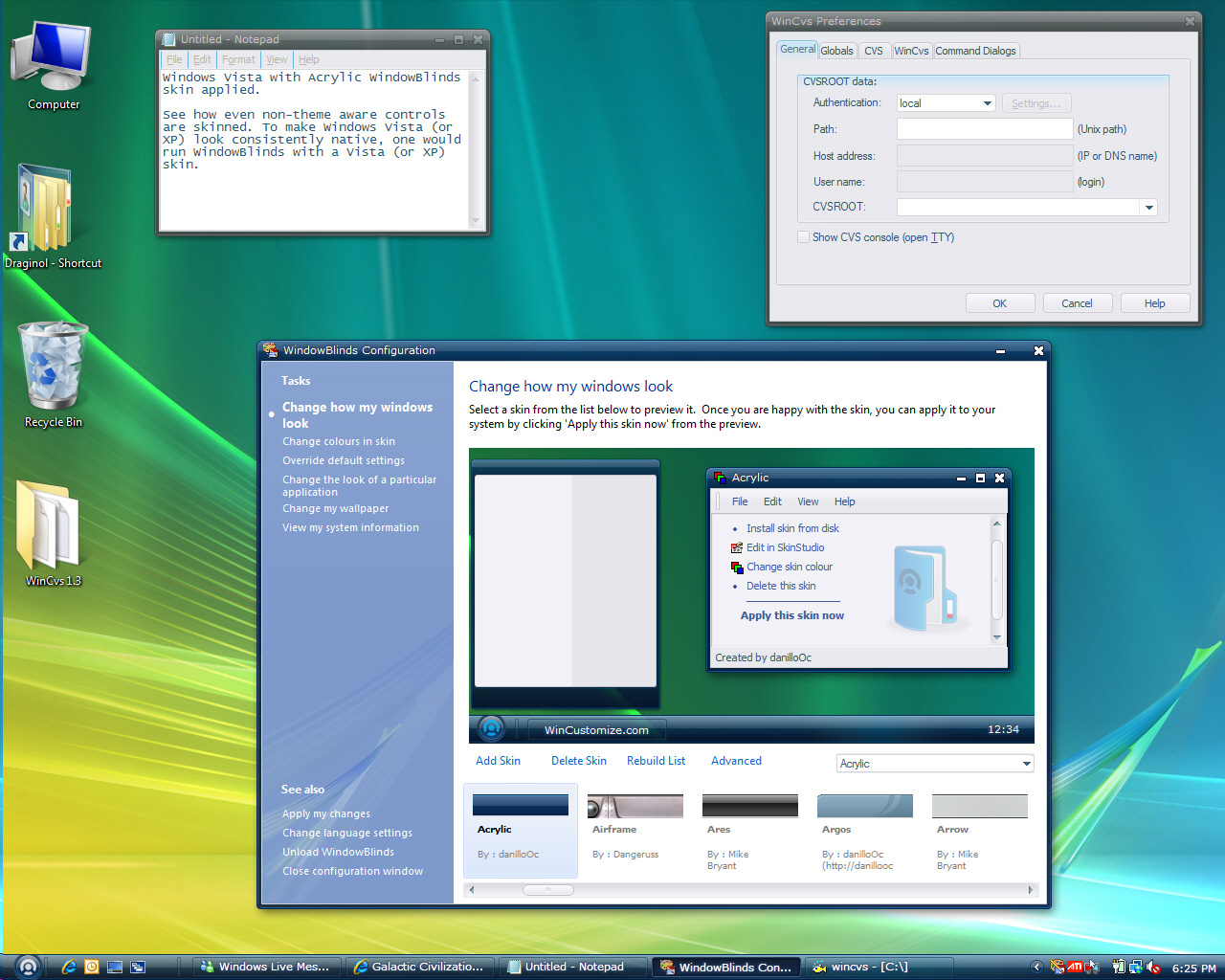
One of these is Windows Vista by default and one of these is Windows XP with WindowBlinds 5.5 running.  Of course, if you look closely at the text in the notepad windows, it's pretty easy to tell.

But check out that the non-Vista actually is more consistently Vista than Vista (you'll know what I mean when you look at the non-theme aware app pictured).


Talisman 2.99 released!

Published on Sunday, March 25, 2007 By Brad Wardell In WinCustomize News

The shareware Windows shell replacement program, Talisman has been updated to 2.99.  Talisman can replace the default Windows shell with one that is highly customized and skinnable.

New in version 2.99:

- Windows Vista support.
- New "Theme Manager 3.0 beta", including: Theme Manager, Theme Installer, Theme Builder, Shape Builder, Object Collector.
- New TSHAPE 3.0 format for alpha-blended Shape objects.
- New "Resize" function for Shape objects. Now you can resize an unlocked Shape object by dragging its bottom-right (8x8 pixels) conner.
- New internal commands: restart, poweroff, hibernate. Use these commands to directly restart/shutdown or hibernate computer without Windows dialog.
- And more


Talisman is $24.95 to register.

Yahoo Widgets 4 Released!

Published on Sunday, March 25, 2007 By Brad Wardell In WinCustomize News

Yahoo has released the 4th version of their popular widget enabler, Yahoo Widgets (formerly called Konfabualtor).

Yahoo says the new version is faster and uses less memory.  Having used it over the weekend, we were very impressed with its performance and overall level of polish. A new Yahoo Widget Finder comes with it which makes it easy to find more widgets without having to visit the website. The presentation and polish was simply incredible, far beyond anything else out there.

It also comes with a Yahoo dock which appears to be Yahoo's answer to the Vista Sidebar.  While we didn't find this feature particularly useful (we turned it off after a few hours), others may find it a great way to display widgets in a sort of minimized form.

Yahoo Widgets includes a number of widgets that make full use of the underlying technology and have a degree of professional quality not found elsewhere. A number of nice web integration features make downloading and adding widgets to your desktop very easy (which is a major reason why WC doesn't have a Yahoo Widgets area -- the web integration between the app and the site is very tight).

For anyone interested in widgets/gadgets, it's definitely worth checking out.

Were widgets overhyped?

Published on Saturday, March 24, 2007 By Brad Wardell In Skinning

Years ago Stardock developed DesktopX with had the concept of putting "live objects" on the desktop. If you check out the DesktopX object gallery and look at the really old ones, you can see what was envisioned -- something beyond icons but not quite mini applications.

When Konfabulator was released, 3 years later, it got so much attention that everyone suddenly assumed there was a huge demand for "widgets".  And the world was blessed with thousands of weather, stock, and other "mini applications" and the creation of live objects seemingly disappeared.

But do people use widgets?  I have to admit, on my system, I rarely have any widgets running. They look cool in a screenshot.  By contrast, I DID use desktop objects even if they were largely cosmetic. 

The line between desktop objects and widgets is very blurred. People were making clocks and calendars and weather and media player objects right from the start. But for the most part, people were doing what amounts to creating smart icons .

So I'm curious, how many people out there are using widgets. If not, would you use desktop objects if people were making them?